


Keeping Microsoft Defender updated is essential for protecting your system against evolving cyber threats. In most cases, Windows Update quietly handles this job in the background. But what happens when Windows Update stops working or fails to deliver Defender updates?
The good news: you’re not stuck. Microsoft provides several reliable ways to manually update Defender, ensuring your PC stays protected—even when automatic updates don’t cooperate.
Before diving in, let’s clarify one thing. Microsoft Defender goes by several names: Windows Security, Windows Defender, and Microsoft Defender Antivirus. Regardless of the label, it’s the built-in security solution trusted by millions of Windows 10 and 11 users.
Below are the most effective ways to manually update Microsoft Defender, explained simply.
1. Update Defender Using Windows Security (Easiest Method)

This is the most straightforward option and works well for most users.
Start by opening Windows Security:
Type Windows Security in the Start menu search bar and open the app.
Select Virus & threat protection from the dashboard.
Scroll to Virus & threat protection updates.
Click Protection updates (or Check for updates on Windows 10).
This action forces Defender to immediately download the latest security intelligence and software updates, bypassing Windows Update issues entirely.
If you’re looking for a quick fix, this method is usually enough.
2. Update Defender Using PowerShell (Fast and Reliable)
![Use PowerShell to Update Windows Defender Signatures - Scripting Blog [archived]](https://i0.wp.com/devblogs.microsoft.com/wp-content/uploads/sites/29/2019/02/2273.HSG-10-24-13-03.png?w=696&ssl=1)
For users comfortable with command-line tools, PowerShell offers a powerful alternative.
Here’s how:
Open PowerShell with administrator privileges.
Type the following command and press Enter:
Update-MpSignature
While it may not show flashy progress indicators, the command actively updates Defender’s security signatures. Give it a moment—it works silently but effectively.
To confirm the update and check Defender’s current status, you can run:
Get-MpComputerStatus
This displays details like Defender version, last update time, and real-time protection status.
3. Update Defender Components Using DISM (Advanced Users)

Microsoft Defender isn’t just one component—it consists of three key parts:
Platform version
Anti-malware engine
Security intelligence updates
Microsoft provides official Defender update packages designed for offline Windows images, useful for IT admins and advanced users managing multiple systems.
Here’s the high-level process:
Download the correct Defender update package (32-bit, 64-bit, or ARM64).
Extract the ZIP file containing update files and a PowerShell script.
Run the script in an elevated PowerShell session to apply updates to the offline Windows image using DISM.
This method is especially valuable for enterprise environments or systems that can’t connect to Windows Update at all.
4. Use Microsoft PC Manager (New and Convenient)
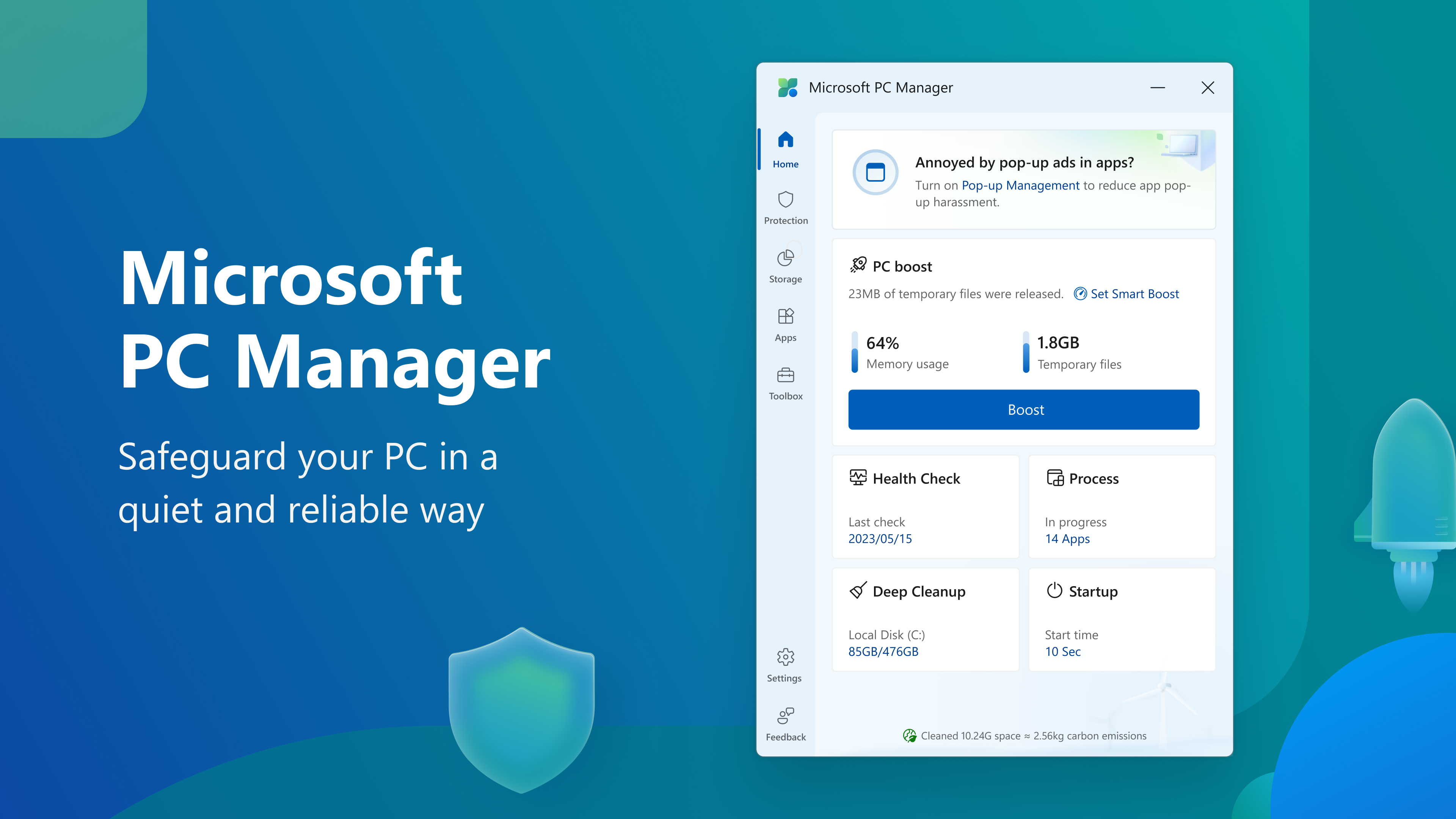
Microsoft PC Manager is a newer system management tool currently available in beta. It combines cleanup, performance, and update features into one interface.
Once installed:
Open Microsoft PC Manager.
Click Protection, then Windows Update.
If Defender updates are available, you can install them directly from here.
While it ultimately pulls from the same update sources, PC Manager provides a cleaner, more user-friendly experience—and includes useful extras like deep system cleanup.
When Automatic Updates Fail, You Still Have Options
Ideally, Windows Update should manage Defender updates automatically—and in most cases, it does. But when things go wrong, it’s reassuring to know there are multiple backup paths to keep your system protected.
Best practice:
Let Windows Update do its job whenever possible.
Use Windows Security’s built-in update option if updates fail.
Turn to PowerShell or DISM for advanced control.
Try Microsoft PC Manager for an alternative interface.
Cyber threats don’t wait for update errors to resolve themselves. Knowing how to manually update Microsoft Defender ensures your PC remains secure—no matter what.